YOUR COMPLETE STATION CONTROL ROOM
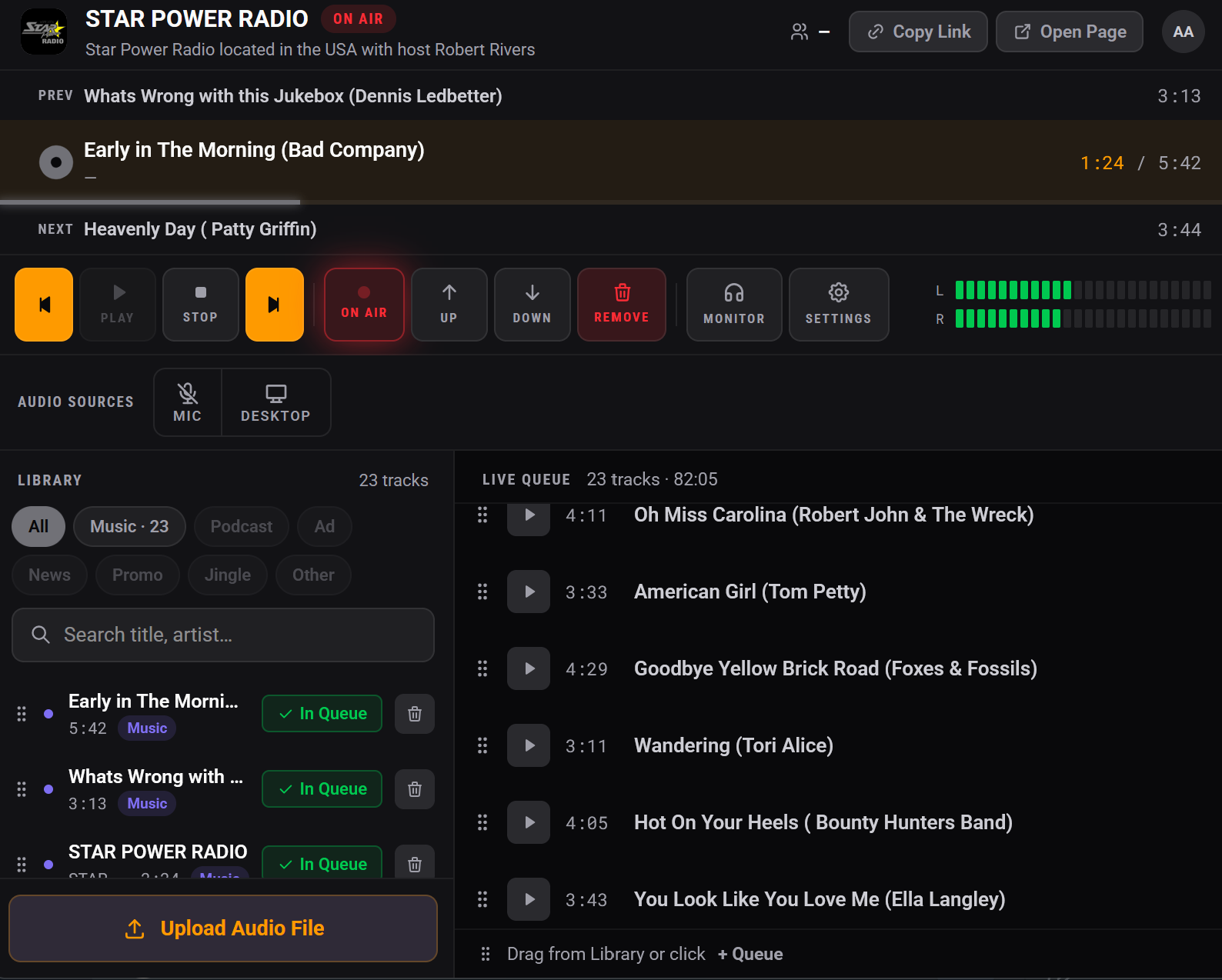
The web-based KryKey Radio Studio brings your station header, playback, audio sources, audio meter, Media Library and Live Queue together in one interface.
Everything in one interface
Station Header
Logo, station name and description, live status, copy station link, public station page and account menu.
Current Playback
Previous track, Now Playing and Next track with title, artist, playback position, duration and progress.
Transport Controls
Previous, Play, Stop, Next and ON AIR controls for the live station.
Audio Sources
Live Microphone and Desktop Audio controls.
Audio Meter
Stereo left/right broadcast levels for monitoring healthy output.
Media Library
Searchable, categorised station audio with MP3 upload.
Live Queue
Your running broadcast order, track count and combined running time.
Settings
Station details, audio settings, library management, account details, upgrades and AI features.
See what's happening now
PREVIOUS
See the last item that finished playing.
NOW PLAYING
View song title, artist, playback position, total duration and live progress bar.
NEXT
See what will automatically play after the current item finishes.
PREVIOUS
Return to the previous queue item.
PLAY
Start or resume playback.
STOP
Stop playback immediately.
NEXT
Skip to the next item.
ON AIR
Control whether listeners hear the station.
MIC + DESKTOP
MICROPHONE
Enable live voice broadcasting for presenting shows, interviews, voice tracking and news bulletins. When enabled, your microphone is transmitted to listeners.
DESKTOP AUDIO
Broadcast compatible sound playing through your computer, including media services, Zoom, Skype, Discord, DJ software, audio software and web browsers.
Anything you can hear through your speakers can be streamed.
Watch your levels
L = Left Channel • R = Right Channel
Aim for healthy levels and avoid constant clipping at maximum output.
Hear what your listeners hear
Monitor lets you listen to the outgoing broadcast through your computer. Use it to check audio quality, levels, microphones and transitions.
Manage your station
Configure station information, logo, host information, call sign, social media, audio settings, library management, account details, upgrades and AI features.
Find your station audio quickly
The Media Library stores your uploaded audio and is searchable by title, artist and filename.
CATEGORIES
All, Music, Podcast, Ad, News, Promo, Jingle and Other.
MP3 UPLOAD
Upload MP3 audio and make it available inside the library.
LIBRARY ITEMS
See title, duration, category and whether an item is already in the Live Queue.
ADD TO QUEUE
Drag media directly from the Media Library into the Live Queue, or use the + Queue button.
MORE MEDIA SPACE
Stackable in 1GB lots from Studio Admin.
Control your running order
TRACKS + RUNNING TIME
See the number of tracks and combined running time at the top of the queue.
PLAY IMMEDIATELY
Start an individual queue item instantly for requests, breaking news, emergency announcements or live inserts.
REORDER INSTANTLY
Drag the handle beside a track to move it to a new position. The station updates immediately.
From upload to on air
Upload
Add music and station audio.
Build
Create your Live Queue and check the upcoming playlist.
Go On Air
Turn ON AIR on and press Play.
Present
Enable MIC when speaking, then disable it when finished. Skip or reorder tracks as needed.
Monitor
Monitor the outgoing broadcast and continue managing the queue throughout your show.
Keep your station sounding professional
KEEP AUDIO READY
Keep 30–60 minutes of audio in your Live Queue and organise your library into categories.
CHECK BEFORE LIVE
Test your microphone, watch your audio levels and use Monitor to confirm the outgoing broadcast.
BUILD YOUR BRAND
Use station IDs and jingles, and place adverts and promos naturally between music.
Read the complete Studio User Guide
The full KryKey Radio Studio User Guide covers every major Studio control and workflow.